Org management
Org Management is where admins manage the shared settings for an Enscribe organization.
Use it to control who has access to the workspace, create organization-level API keys, and review the core details for that organization.
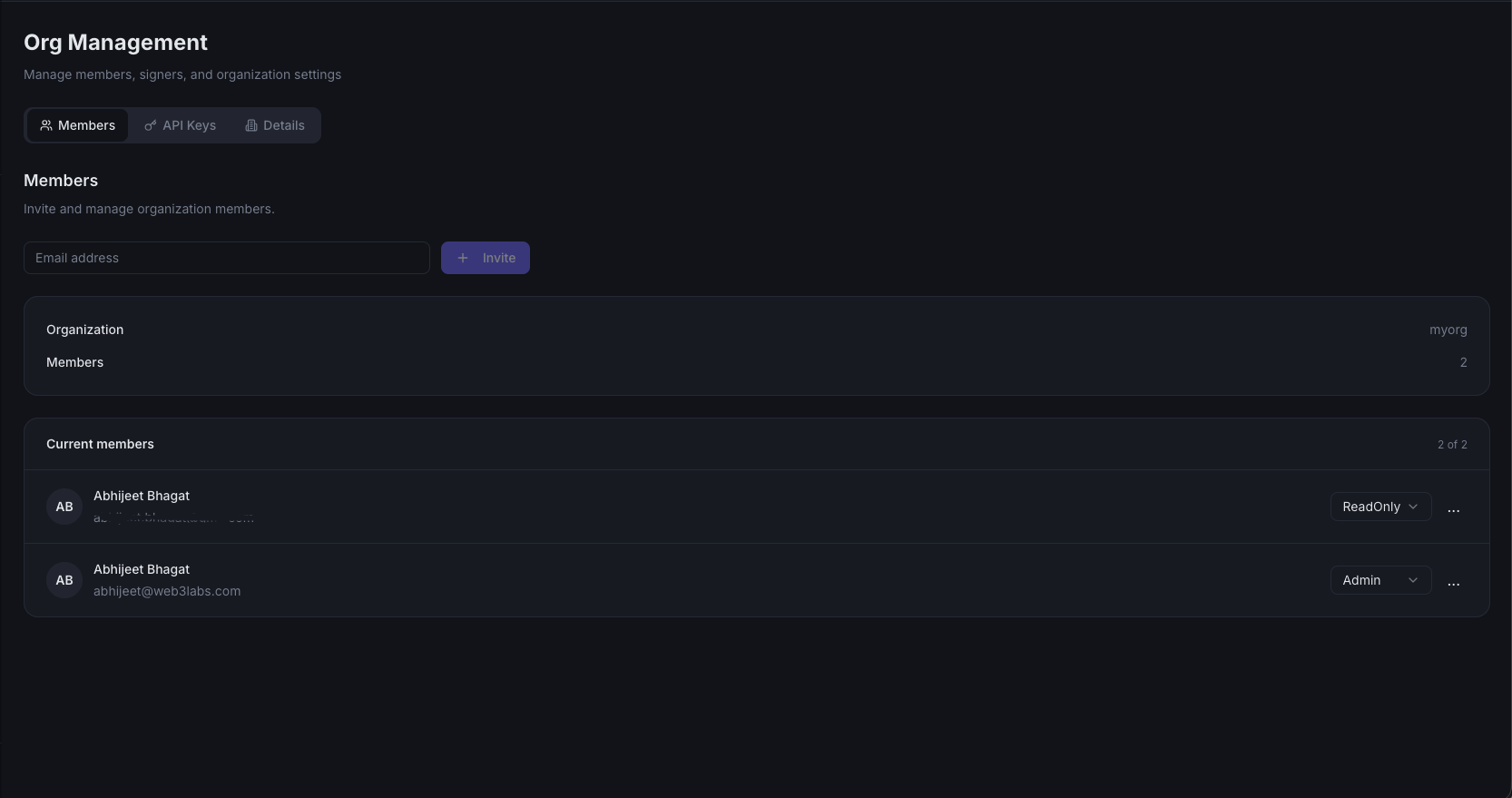
What Org Management controls
Org Management applies at the organization level, not the namespace level.
That means changes here affect the whole workspace:
- members can access the organization based on their role,
- API keys can be used across organization workflows, and
- core details describe the organization itself.
If you need namespace-specific settings, such as manager mode or namespace-scoped API keys, open the relevant namespace settings instead.
Members
The Members area is where admins manage who can work inside the organization.
From here, admins can:
- invite teammates by email,
- review the current member list, and
- review or change organization roles.
This is the same access flow you can use during namespace onboarding when Enscribe offers to invite members as the last step. If you skip that step, you can add people later from Org Management.
API keys
The API Keys area is where admins create organization-level API keys for automation, internal tools, and other programmatic workflows.
Use organization-level keys when the integration should belong to the shared workspace instead of one specific namespace.
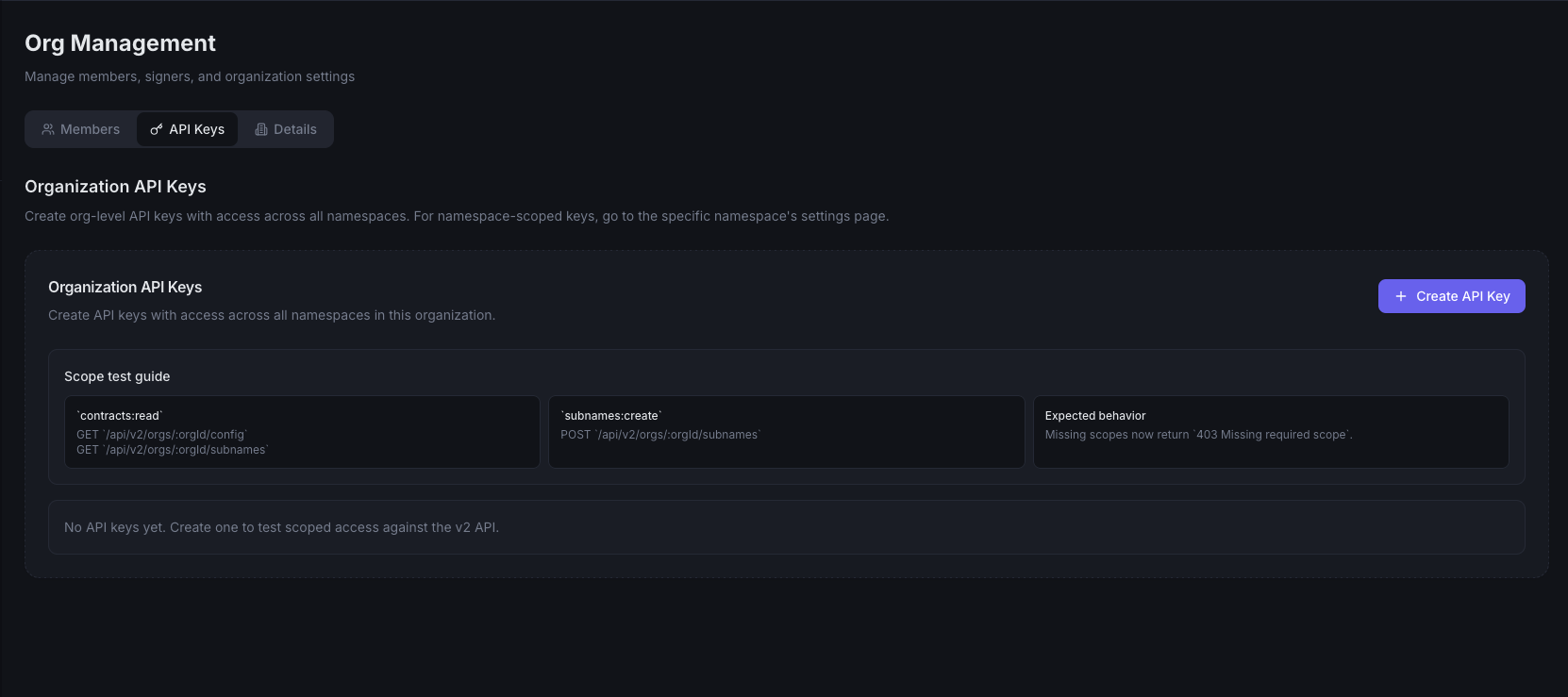
Typical use cases include:
- internal scripts that need access to organization resources,
- deployment or operations workflows owned by the team, and
- integrations that should continue to work even if an individual member leaves.
If you only need access for one namespace, use a namespace-scoped API key from that namespace’s settings page instead.
API key dialog
When you create a new key, Enscribe opens a dialog where you define the key before it is issued.
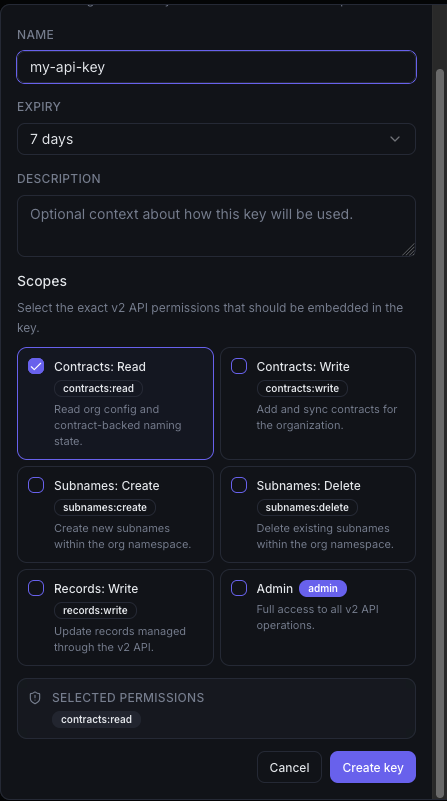
The dialog includes four main parts:
- key name,
- expiry,
- scopes, and
- the Create key action.
Key name
The key name is the label your team uses to identify the key later.
Choose a name that describes the system or workflow that will use it. For example, you might name a key after:
- a deployment pipeline,
- an internal dashboard,
- a bot or agent, or
- an operations script.
A clear name makes it easier to review existing keys and understand which integration each one belongs to.
Expiry
The expiry field sets how long the key should remain valid.
Use this setting to limit long-term access when a key is only needed for a temporary workflow, short test, or time-bound integration. A shorter expiry reduces the chance that an old key remains active longer than intended.
If your team is creating a key for a longer-running system, review the expiry choice carefully so the integration does not stop unexpectedly later.
Scopes
The scopes field defines what the key is allowed to do.
Scopes are the permission boundary for the key. They help you avoid giving an integration broader access than it needs.
When choosing scopes, match them to the job the key is meant to perform. For example:
- a read-focused integration should only receive the scopes it needs to inspect data,
- an automation workflow should only receive the write access required for that workflow, and
- a broader internal tool should still be limited to the smallest useful permission set.
Treat scopes as the main control that determines the blast radius of the key if it is misused or exposed.
The Create key button submits the dialog and asks Enscribe to issue the new organization-level API key.
Before you click it, confirm that:
- the key name clearly identifies the integration,
- the expiry matches how long the key should stay active, and
- the selected scopes match the intended level of access.
After creation, store the key in the system that needs it and handle it like a secret. If the integration no longer needs access, remove or replace the key through Org Management.
Details
The Details area shows the core metadata for the organization.
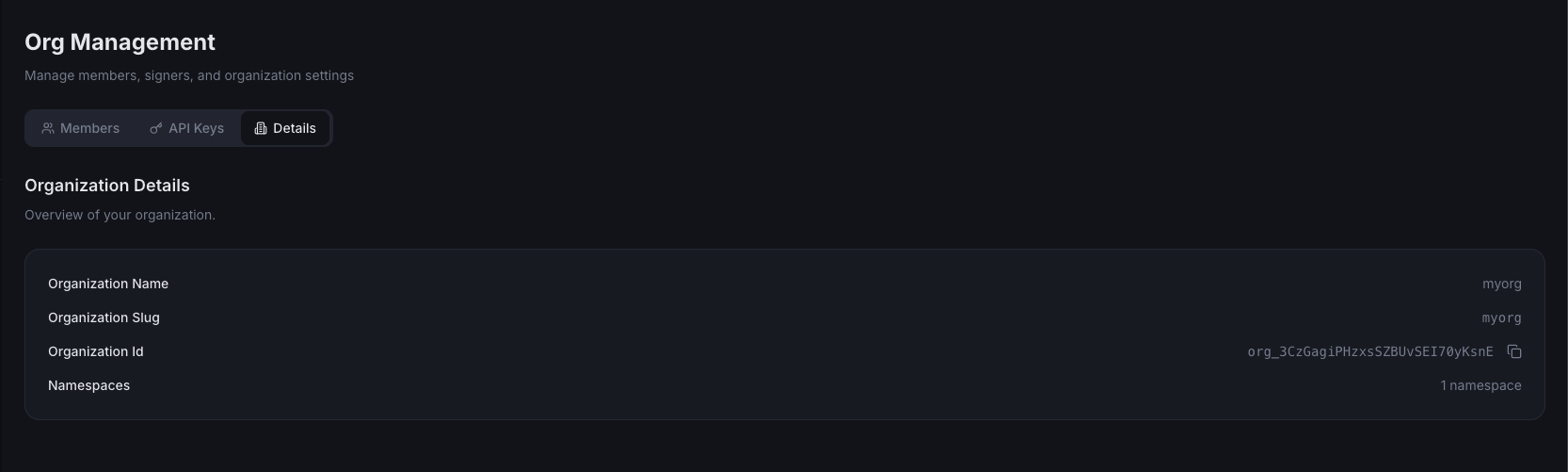
Use it when you need to confirm which workspace you are in before inviting members, creating API keys, or managing namespaces.
Depending on the UI state and your role, this area can help you review:
- the organization name,
- the current workspace context, and
- other high-level organization settings exposed by Enscribe.
Who should use Org Management
Org Management is mainly for workspace admins.
It is the right place to go when you are setting up a team, handing access to a new contributor, or preparing organization-wide integrations. Day-to-day namespace work, such as creating subnames or updating ENS records, usually happens elsewhere in the workspace.